Pattern Swatches in Illustrator
Pattern Swatches are a hidden gem in illustrator. You can use them to quickly fill shapes with patterns and illustrations. Here's a short tutorial using a t-shirt design.
A simple example 
In this quick example of using pattern swatches we are going to use a t-shirt design. Pattern swatches allow you to quickly fill shapes with patterns and even illustrations. I’ve drawn a simple t-shirt on the canvas using the pen tool.
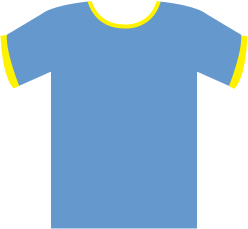
Example one - stripes 
To create a pattern swatch you simply draw your pattern or shape as you normally would on another part of the canvas.
Draw two rectangles on the canvas and then fill them with two different colours. I’ve chosen blue and white. Then select both shapes and drag them into the Swatches box.
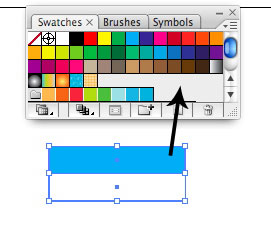
If you can’t see the swatches box go to Window > Swatches. You should see the pattern that you dragged into the Swatches box now available. To use the pattern select the Object you want to fill using the selection tool (v) and then click on the pattern you just dragged in. If everything went well you should now have a striped t-shirt.
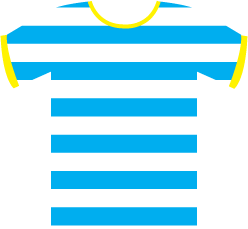
Example two - flower power 
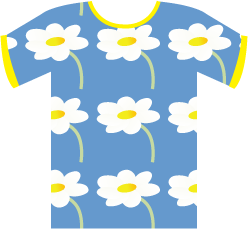
The real power of this feature is that you can quickly fill shapes or objects with illustrations. Let’s say we are going to a 60’s flower power party and we want to design a t-shirt for the occassion. Using Pattern Swatches we can draw a flower, drag it into the swatches and then quickly fill the t-shirt. Easy.
Tags
Can you help make this article better? You can edit it here and send me a pull request.
See Also
-
Illustrator 101 - The Pen Tool
A tool worth learning you can soon have the same control as you do when sketching. It is tricky to master but you can soon be up and running with a little practice. -
Illustrator 101 - The Lasso Tool
The final selection tool this allows you to select using a freehand shape. Very useful for intricate drawings it can be much quicker than the other selection tools. -
Improving image quality in Photoshop
Often clients deliver images that are not really good enough for use on the web. Photoshop comes with some less well known features that can improve image quality drastically in a couple of clicks.