Dotted lines in Photoshop
Designing for the web in Photoshop has one thing missing - dotted lines. Here's how to create dotted lines so you can show clients how links will look.
No dotted line preset 
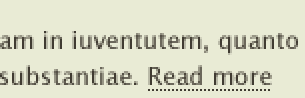
It is a little surprising that no dotted line preset exists in Photoshop - even in CS3. It is easy enough to do though but requires a bit of tweaking to get the desired effect. This is what we want to acheive. It is a one pixel dotted line that will appear under links.
Getting the effect 
To create this you first need to select the pencil tool (seeing as we want the edges of the dots to be square). In the brushes options click on the arrow to the right of the brush to bring up the brushes library. You should see the Master Diameter and Hardness as well as the brushes below. Click on the flyout arrow to the right of Master Diameter and you should see the following:
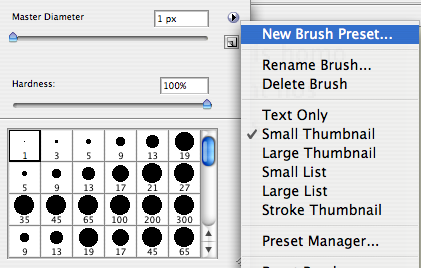
Click new brush preset and give your brush a name. I’ve called mine “Link 1px Dotted Line”. Now bring up the brushes palette by going to Window > Brushes. Click Brush Tip Shape and then change Spacing to 200%. This will give you a 1px dotted line.
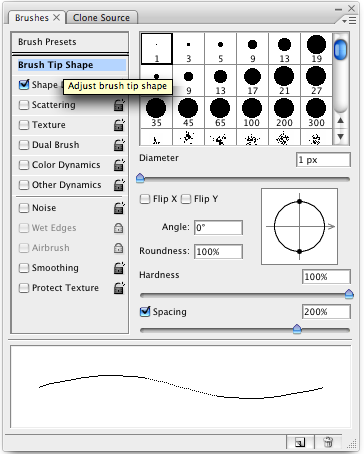
Now with the Pencil tool selected you can draw dotted lines onto the canvas.

Tags
Can you help make this article better? You can edit it here and send me a pull request.
See Also
-
Improving image quality in Photoshop
Often clients deliver images that are not really good enough for use on the web. Photoshop comes with some less well known features that can improve image quality drastically in a couple of clicks. -
Creating grunge effects in Photoshop
Designing with grids is commonplace in design but the danger is that everything looks a bit ordered. Using grunge effects you can keep your grid and mess up your hair to look a bit cooler. -
Concentric text in Photoshop
One day you might just be insane enough to want to write concentric text in Photoshop. It is quite illegible and likely to give you a headache but if you still want to do it read on.