Curving The Edges of Images in Photoshop

I get a lot of search engine referrals from people looking to create curved images or curved rectangles in Photoshop. So here's a quick tutorial to show you how.

UPDATE 15/02/07: Quite a few people seem to have been having trouble with this so I've added a video at the bottom. There are some good comments below too that should help you if you have difficulties

Curved rectangles

Curved rectanges are simple - there is tool in photoshop that will create the shape for you. You can access this tool by pressing U. This selects the Custom Shape Tool. To create a curved rectangle you need the Rounded Rectangle Tool, which is the second one down.
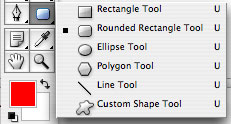
The Curved Rectangle Tool

Then simply draw your rectangle. You change the amount of curve by altering the radius. In the default workspace this is at the top of your screen. If you don't see your default workspace you can return to this by going to Window > Workspace > Default Workspace

Examples of curved rectangles where the radius alters the curve
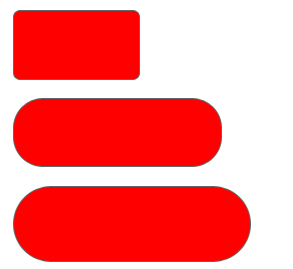
Examples of Curved Rectangles

Curving the edges of shapes or photographs

Often you will want to break up the hard edges of photographs of solid shapes like rectangles or photographs. By applying a mask you can do this easily.

When you open your photo the image will have one layer by default. This will be called "Background". In order to create curved edges you will need to copy this layer. Right click on the layer and choose Duplicate layer. Then hide or delete the original Background layer. Hiding is probably preferable incase it all goes wrong!

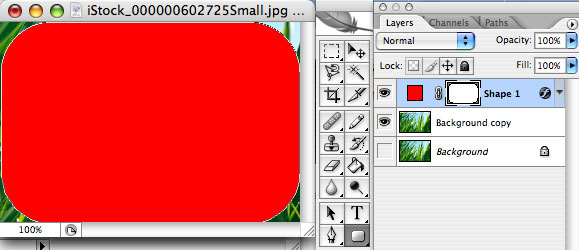
Step one - Draw the Curve

Selected the Rounded Rectangle as we did in the first example. Then draw a rectangle over your shape. You can change the curve you have on your rectangle using the radius option. Don't worry about the colour - you won't see this in the end.

Drawing the curve

Step two - Select the Curved Rectangle

In order to create a mask you need to select the curved rectangle you have just drawn. To do this hover over the preview of the shape in the layers window. In the example this is the red square. Hold down the Apple Key on a Mac (ALT CTRL on Windows) and you will see a white rectangle appear next to the hand. Click and the shape will be selected - you will note the familiar black and white edge to the shape showing it is selected.
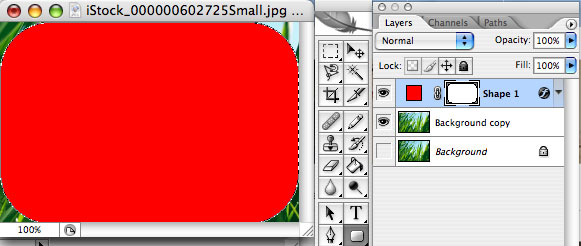
Select the Curved Rectangle

Adding a vectorlayer mask

To curve off the shape we use a vectorlayer mask. To create this you now select the Background copy layer. You should see that your curved rectangle is still selected. At the bottom of the layers pane is what looks like a small camera. As you hover over it is says "Add vectorlayer mask". Click this to add the vectorlayer mask. When you add the mask you will see the parts of the picture that are not under the mask disappear.
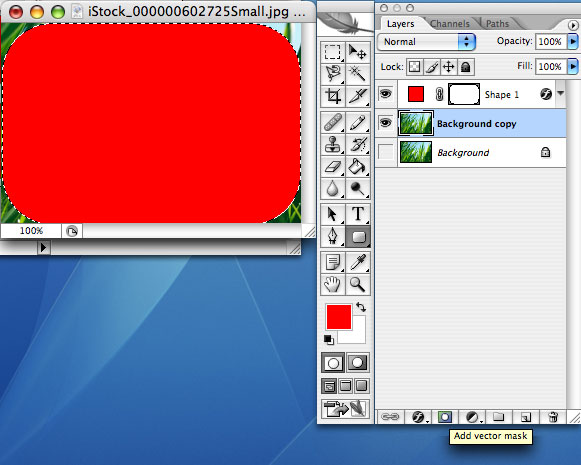
Add Layer Mask

Showing the finished image

To show the finished image simply turn off the visibility of your curved rectangle layer. You do this by clicking the eye icon in the layers window next to your curved rectangle layer. Then save out your image for the web and your are done!
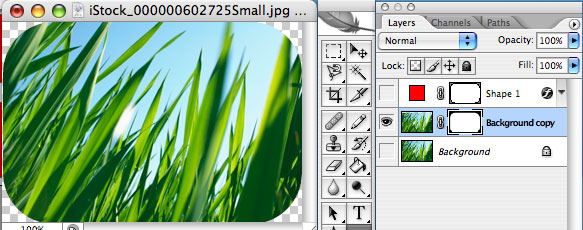
The finished curved image

Use your imagination

You can use any shape to create a Vector mask so why not explore the elements within the Custom Shapes Tool? You can use any of them to mask off your photograph or shape.

Still don't get it? Watch the movie!

This video requires the flash plugin. You can get a copy of it for free from here

Comments

Lenn
Nov 21 2006

It looks nice but I can’t get it work. I suppose that I followed the steps exactly. What’s wrong with me? Something in my setup?

Lennart

George Ornbo
Nov 21 2006

Not exactly sure where you are going wrong but here are some tips that might help:

Make sure that you are not trying to add a mask to a background. You will need to copy your background and hide the original if this is the case as you can’t apply masks to backgrounds.

Be sure to Apple / ALT CTRL click over the coloured square (the red square in layer Shape 1 above). This ensures the rounded rectangle is selected. You should see the familiar black and white selection line around your shape.

When you apply the mask make sure that you have selected the right layer before clicking Add Vector Mask. In the example above it is Background copy.

Finally make sure you hide the rounded rectangle so you can see your rounded image.

Hope that helps!

Ajay
Nov 30 2006

1. Step 2. hold the Alt key ... you will see a white rectangle...nothing happens when i do this
2. At the bottom of the layers pane is what looks like a small camera- yes it does but mine says “Add layer mask”....under “Layers” ....it says disable or delete Vector mask....i dont get the option of Add vector mask at all.
3.Just to try i clicked “add layer mask"( i had no choice) now,The edges of the final picture has a cloudy finish. It is not like how the final picture above looks.I mean it does not have a defined edge...its cloudy...you know like a white shadow. I hope you understood what i mean. Please give me your suggesstions.

Michelle
Dec 14 2006

I had the similar problem to ajay, my curved rectangle doesn’t select with the familiar black and white like either its just an outline.

hanzala
Dec 16 2006

you can perform same action by another simple method , procedure: you take a desired image and draw a rounded rectangle as you like on it then press ctrl+enter then invert select it by pressing ctrl+shift+i then press del you will have same result in few seconds . i think it is much more easy than your mentioned method

George Ornbo
Dec 19 2006

@Ajay & @Michelle - could you tell me which version of Photoshop you are using? This tutorial is based on CS2, but let me know and I’ll see if I can help.
@Hanzala - I couldn’t get your method working but if it works for you then great.

gns_nobody
Dec 22 2006

Hi there,
@ Ajay & Michelle: You havn’t not use the ALT - Key, that’s simply wrong.
The STRG-Key works.

cya

gns_nobody

Minh
Jan 3 2007

This does not work for me either, hanzala’s method does not work either. I use CS2

Bruno Ng
Jan 10 2007

Guys, use the CTRL key instead of the ALT key to select. ALT key will not work. It’s the CTRL the correct key

sharron
Jan 11 2007

Hanzala’s method worked great—just a few clicks.

George Ornbo
Jan 11 2007

@Bruno Ng - Thank you. I work on a Mac thanks for pointing this out. I have updated the post.

g-)
Jan 26 2007

Hanzala’s method worked perfectly for me. However, she missed a minor detail at the end. After you press delete, highlight only the “background copy, “ and you’ll see the changes.

I’ve struggled with this for so long...and it really is simple, if you follow Hanzala’s directions. Thanks!

aisy
Feb 13 2007

hey i tried Hanzala’s method and it pretty much worked. BUT although i set my background as transparent, white pieces still showed at the four corners. so when i put the pics against a different coour background, the white patches are visible. is there anybody who can explain why?

xtranew
Feb 13 2007

To Aisy, the same also happened to me when I tried Hanzala’s method, so I used combination of two methods (Hanzala and George) to achieve the result we’re aiming for.

1) Right click on the Background Layer and choose Duplicate Layer. Then hide the original Background Layer (by clicking the eye).
2) In the Background copy Layer; Select the Rounded Rectangle Tool, draw a rectangle over your image, hover your cursor over the rectangle, and press Ctrl+Enter (for Windows, or the equivalent of Strg+Enter for German users). The familiar black and white edge that indicated your shape is selected should appear.
3) Still in the Background copy Layer; Click what looks like a small camera at the bottom of the Layers Palette to “Add Layer Mask”.

That’s it, you’re done!

aisy
Feb 14 2007

to xtranew, thank you so much for your help! it works! i really appreciate it! :))

George Ornbo
Feb 16 2007

I’ve added a video that should help see the technique in action. If any of the other techniques in the comments work for you then great!

Hanzala
Feb 16 2007

Hi to all , Hanzala here, First of all i would like to inform you that i,m a male not female. it was a so simple tip for me and i have a lot of tips ,but could not come bcz of being much busy , im a Graphic Designer n i,m doing work for a UK based software house in pakistan . Now i,m going to join a new US company i will work for it , so if anybody need my opinion and services in designing i will feel happy . my email is “g_dexigner@hotmail.com . sorry if i am bit late in reply

Sam
Feb 28 2007

Hi, Hanzala I tried your method on my windows it didn’t work, when its selected right click on the object and select inverse. Then it worked :D thanks.

Scar
Mar 15 2007

Hi
not working for me.. it doesn’t have a vector mask when you hover the ‘camera’ - just layer mask..

CS2. So im guessing you ment layer mask right?>

George Ornbo
Mar 15 2007

@ Scar Good spot - you are right. It is the layer mask. Post updated.

Ryoko
Mar 23 2007

to xtranew

thx for the info! easy to understand and works perfectly!

sharron
Mar 29 2007

This is a great resource!  Thanks for sharing your talents.

xtranew
Mar 30 2007

ETA: I’m not sure this has been addressed before, but if you want to have a transparent background after creating a curved edges image, you CAN save the file in a variety of formats (including GIF, TIFF, PNG and of course PSD)… except JPG.

Note: JPG format does not support transparency.

(^_^)

Anonymous
May 18 2007

how come after I saved it and when i put it on myspace there still a white background! like you can see the white background and the curves -_- I dont want to see the white background!

Anonymous
May 18 2007

Thank you very much xtranew! I really do not want to see the background. Thanks! I will save it as png or gif! :)

One Eyed View
Aug 16 2007

Thank you so much for this tutorial. I do have a question. I am trying to add a drop shadow around the entire image. Could you please post some additional help?

George Ornbo
Aug 16 2007

@One Eyed View - you may have worked this one out already but if you go into the layers Panel (Window > Layers) and then right click on the layer you want to add a drop shadow too. Click Blending Options and then check Drop Shadow. Click the word Drop Shadow to see the options.

LC
Sep 12 2007

Thanks for this tutorial - I’ve been trying to figure out how to do this for a long time!

Katie
Sep 16 2007

Thanks - this proves it is easy when you know how!

ownager
Nov 16 2007

Hanzala, your tip worked better than the tutorial! Thanks!

seri
Dec 28 2007

someone please help me! email me or something! from here, i realised i can’t save the file in jpg. but even when i saved in gif and uploaded it to my blog (blogspot), the white background still appears. but with png and tiff, a BLACK background appeared? what the hell! i’ve been on this for HOURS and it’s gettin on my nerves! PLEASE HELP!

George Ornbo
Dec 28 2007

@seri - if you are using photoshop make suring in the Save For Web options you check Transparency when you save as PNG or GIF. Internet Explorer 6 does not support PNG tranparency natively so you are safer to use GIF. If you are using another software package I can’t help I’m afraid!

holly
Feb 14 2008

hanzala, i used you’re tip but when i press del a box comes up and says “could not complete your request because the content of the layer is not directly accessible”

i have created a copy background of the original background and used that one but that doesn’r work either.

please help!

Lukasz
Feb 16 2008

Important thing is after you chose this curved rectangle tool you have to select ‘Shape Layer’ instead of ‘Paths’ or ‘Fill pixels’. And after you draw this shape, the new layer with mask apear. Now press a (direct selection tool) and right click on this new mask (’Vector mask thumbnail’) and chose ‘Make selection’ you should have ----------- around your rectangle. Then you select youre image layer and add mask to it (’Add vector mask’). After all turn off visibility of shape layer.

Craig
Jun 24 2008

Does anyone know how to curve a single edge instead of all four of them?

Have your say

Post details

20th October 2006

35 Comments

What's this?

This is a journal entry written by George Ornbo, a web designer who lives and works in London, England.

Subscribe

Journal articles by RSS

Journal articles by Email

Recommended Links by RSS

Participating / Attending

Inclusive New Media Design

dConstruct 2008 - Designing the Social Web

Member of the 9 Rules Network Media Temple