Photoshop 101 - The Gradient Tool
The Gradient and Paint Bucket tools are both useful gems in Photoshop and can be used to quickly fill in areas as well as create backgrounds for websites.
The Gradient Tool - does what it says on the tin 
The Gradient Tool does just what it suggests - it creates gradients. But it gives you an unbelievable amount of control of the gradients you create. You can save gradients you create for use later too. Let’s dive in.
Tip: The shortcut key for the Gradient Tool is G. Hitting G with Photoshop open will invoke the tool.
Gradient tool options 

It is worth becoming familiar with the options. From left to right here is a quick overview:
- Gradient picker - this allows you to be from your gradient library. Click the flyout menu to manage this.
- Linear gradient - The gradient follows a line
- Radial gradient - The gradient radiates from a defined point
- Angle gradient - The gradient is based on a defined angle.
- Reflected gradient - The gradient is reflected based on your stroke.
- Diamond gradient - The gradient is a diamond effect. Useful for giving sparkle!
- Mode - This is the mode of the colour on the screen.
- Opacity - This defines how see through the gradient is. 100 is not at all and 0 will mean you can’t see the gradient.
- Reverse - flips the gradient colours.
- Dither - This makes the gradient effect smoother by reducing the colour banding.
- Transparent - This turns transparency on so if you want parts of your gradient to be transparent you need this.

A simple background for a website 
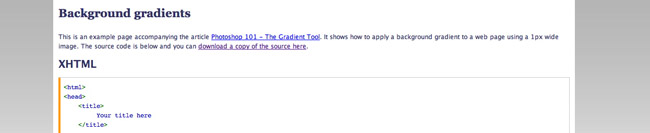
One use of the gradient tool is to create a background for a website. You can do this by creating a 1px wide gradient and then using repeat-x in CSS to repeat the image across the background. When you create the gradient make sure it fades to white at the bottom so it will fade gracefully. Have a look at the example page to see it in action and to get the source code.
The Paint Bucket Tool 
The paint bucket tool will fill areas or selections with a particular colour. You can alter the opacity to affect how transparent the colour is just as you can in the gradient layer. Tolerance affects how broadly the paint will fill after your click. All pretty straightforward really!
Tags
Can you help make this article better? You can edit it here and send me a pull request.
See Also
-
Photoshop 101 - The Eraser Tool
A common task in Photoshop is to remove pixels entirely from images. The Eraser tool offers a number of techniques to achieve this. -
Photoshop 101 - The History Brush Tool
The History Brush Tool allows you to paint and reveal previous states of images. This can be very useful in creating effects. -
Photoshop 101 - The Clone Tool
The clone tool allows you to retouch images and remove blemishes. Understanding how it works will allow you to adapt images to your requirements.