Make a photograph black and white in Photoshop CS3
Until recently I'd been using desaturate to convert photographs to black and white in Photoshop. In fact there is a much better non-destructive method.
New for CS3 
This method will only work on Photoshop CS3. In this example we are going to use an image taken by Steffe.
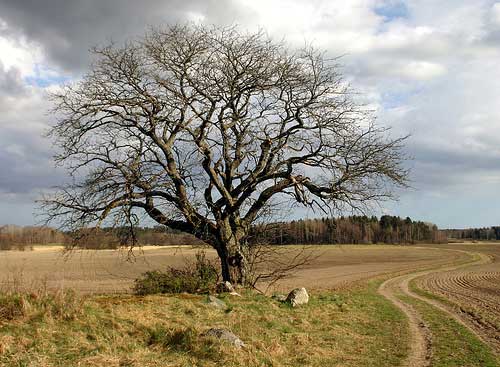
The Technique 
Open the image that you would like to convert to black and white and open the layers palette by going to Window > Layers or just hitting F7. In the layers palette click the Create new fill or adjustment layer at the bottom of the layers palette.
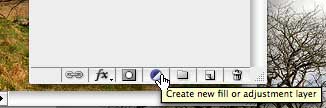
Select Black and White. Hey presto! Not only is it a non-destructive layer (meaning your original photograph is safe) but you can also adjust the result based on the original colours.
You can use the sliders to get the photo to where you would like or apply a number of custom presets. As if that isn’t enough you can also click and hold on any part of the photo and then drag the mouse to the left or right to change that colour. Pretty slick.
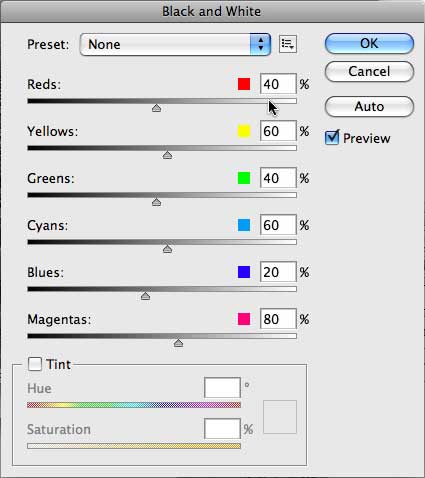
If you want to change the Hue or Saturation you can also do it at the bottom of the options.
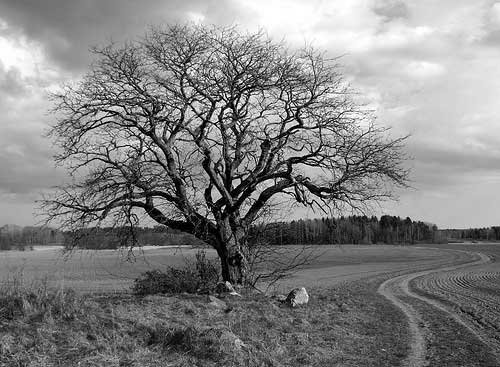
Desaturation no more 
Until I discovered this technique I was using desaturate to move colour images to black and white. No more!
Tags
Can you help make this article better? You can edit it here and send me a pull request.
See Also
-
Designing with grids in Photoshop
Creating a grid to base your designs on is invaluable for giving structure to the page. Here's a quick introduction to grids and how you can speed up creating them in Photoshop. -
Creating backgrounds with Patterns in Photoshop
Often designs need a background to fill space behind navigation or other page elements. Here one way to create them. -
The New Photoshop Logo
I'm not often moved to criticise other designers work. It is their livelihood after all. But the new Photoshop logo falls well short of the mark.