Illustrator 101 - The Lasso Tool
The final selection tool this allows you to select using a freehand shape. Very useful for intricate drawings it can be much quicker than the other selection tools.
Freehand selection 
With the Lasso tool you can select objects by freehand. This can be quicker than using the Selection Tool and holding shift. To select objects by freehand select the Lasso tool and draw a shape around the objects you want to select. You don’t have to close the line you draw - if you don’t illustrator will infer the selection with a straight line between your start point and end point. Have a look at this in action in the video below, firstly with a closed line and secondly with an open line. Note with the open line how only part of the object is selected.
Adding and removing 
If you want to add or remove anchor points from your selection you can. Hold down Shift to Add more anchor points with the Lasso tool, or ALT to remove them.
Selecting parts of objects 
Using the Lasso tool you can just choose parts of objects. If for example your Lasso only covers part of an object only the anchor points within your anchor will be selected. You can tell if an anchor point is selected as it will turn to a blue square. Anchor points that are not selected are a white sauare with a blue border.
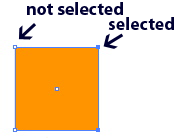
Watch the video below to see how this works. Drawing the lasso over parts of shapes just selects anchor points within that area. Then we add and remove some anchor points. Finally with the direct selection tool we can move just the anchor points we have selected.
Tags
Can you help make this article better? You can edit it here and send me a pull request.
See Also
-
Illustrator 101 - The Magic Wand Tool
No wizards just a solid tool that allows you to select objects based on defined criteria and make quick changes to your drawings and illustrations. -
Illustrator 101 - Selection tools
Understanding the selection tools is a must for working with icons or illustrations. Master the basics and you will save yourself a great deal of time.