Illustrator 101 - The Blend Tool
The blend tool is a great way to build out shapes and design elements in Illustrator. Here's a quick overview of how it works and some techniques to apply.
What the blend tool does 
The blend tool joins two or more different objects together. The way they are joined depends on the options that you select. Lets start with a simple example that has probably been seen before. Start by drawing a rectangle and then filling it with a gradient. Then draw two paths that overlap. Select these with the direct selection tool (shortcut V). Remember to hold down shift for multiple selections. Now the trickier bit. Select the blend tool (shortcut W). Once selected you need to select the start and end of the blend. So click on the end of the paths that you want to join. When you do this you will see the lines blend. See the video below for this in action.
Illustrator 101 - The Blend Tool from George Ornbo on Vimeo.
Once you have created your blend you can modify it by double clicking on the Blend Tool to bring up the options. In the video above I changed the steps from 20 to 10. Note with the Preview button checked you can see what it is going to look like before you click ok.
Not just for blending lines 
The blend tool is not limited to lines. You can blend any object on the canvas. Try playing around with some shapes and creating blends. Heres a quick one that came out out of one turquoise and one grey brush stroke.
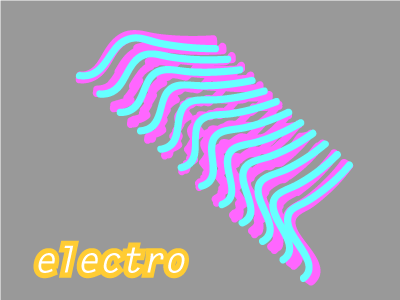
In this example I’ve used some of Bittbox’s custom brushes. A very quick effect.

So get working with the blend tool and you even end up making something like this!
Tags
Can you help make this article better? You can edit it here and send me a pull request.
See Also
-
Rounding edges in Illustrator
Using a simple technique you can round the edges of pretty much anything in Illustrator. Furthermore with the Graphic Styles Panel you can reuse your style over and over again. -
Custom brushes in Illustrator
Custom Brushes in Illustrator are an excellent way to add to designs. Here's a short tutorial how they work and how to use them. -
Creating a comment icon in Illustrator
A short tutorial on creating a vector-based comment icon in Illustrator. The tutorial includes a downloadable illustrator file to work through the example with.